



“Who actually has admin access to Slack?” – “Are we still paying for the tool we haven’t used in three months?” – “Has someone removed Julia from the Canva account?”
These questions sound trivial – but they are expensive. 73% of small businesses don’t have a complete overview of their SaaS subscriptions. The result: duplicate licenses, ex-employees with admin rights and €200-800 wasted every month.
If you also feel that your tool landscape is slowly getting out of control – you’re in good company. And above all: there is a way out that requires neither a large IT team nor a large budget.
In this article, I’ll show you how to create order with a 5-step process – without a bureaucratic monster and without a dedicated IT team.
📋 Contents
- Typical problems in the SaaS chaos
- The 5-step process
- Quick Wins: MFA, SSO & central admin accounts
- Reporting: Making costs & risks visible
- On-/Offboarding as a core process
Typical problems: When SaaS becomes a cost monster
Before we get into the solution, it’s worth taking a quick look at the most common sources of problems. Many of these are not the result of negligence, but simply because companies grow and the tool landscape grows organically with it – without anyone keeping track.
The shadow IT dilemma
Sarah from Marketing books Canva Pro. Tim from Sales does too. Neither of them know anything about each other. Result: 240€/year wasted.
If you multiply this scenario across all departments, you quickly end up with four-digit annual amounts – for tools that are duplicated or have long since fallen into disuse.
Even more common: tools are booked for projects, the project ends – the subscription continues. After 12 months, it becomes apparent when the credit card is declined.
The admin rights black box
Imagine the following scenario:
Your former head of marketing had admin rights to:
- Google Workspace
- Slack
- Asana
- HubSpot
- Canva
He’s been gone for 4 months. Has anyone deactivated his accesses? Mostly not.
This is not a hypothetical horror scenario. According to a study by BetterCloud, 68% of companies have active accounts of former employees in at least one SaaS tool. That’s not just a cost issue – it’s also a serious data protection risk.
Double subscriptions & license corpses
Typical findings during a SaaS audit:
- 3 Zoom accounts (different departments)
- 15 Slack licenses, 8 active users
- Dropbox Business + Google Drive + OneDrive (all paid)
- Adobe Creative Cloud for ex-employees
Average savings potential: €400-1,200/month for 10-30 employees.
The 5-step process: getting to grips with SaaS chaos
The good thing about this process is that it takes just one time – around 2-4 hours for the initial setup. After that, the system runs almost automatically and only takes 30 minutes per quarter.
Step 1: Create inventory (one-off 2 hours)
Collect ALL SaaS tools. Sources:
- Credit card statements for the last 12 months
- Consult the IT team
- Employee survey: “Which tools do you use every day?”
- Check browser extensions (LastPass, 1Password show saved logins)
Experience shows that this step always brings up 3-5 tools that the management has never heard of – and which nevertheless regularly charge the company credit card.
Record minimum inventory:
| Tool | Costs/ month | Owner | Number of users | Renewal date | Admin access |
|---|---|---|---|---|---|
| Slack | 80€ | IT | 12 | 15.03.2025 | Max, Julia |
| Canva | 24€ | Marketing | 3 | 01.02.2025 | Sarah |
Step 2: Define owner (5 minutes per tool)
For each tool: Who is responsible?
- Owner = decision on extension
- Owner must have budget responsibility
- No owner = tool is not needed → cancel
The owner rule sounds simple, but it is the most effective lever in the entire process. As soon as a real person is responsible for a tool, the probability of unused licenses decreases significantly.
Example:
- Slack → IT management
- HubSpot → Sales management
- Figma → Design Team Lead
Step 3: Centralize access
Problem: Everyone books with their credit card. Cancellations impossible if the person is away.
Solution:
- Central company credit card for all SaaS subscriptions
- Central e-mail for registrations:
saas@ihrefirma.de - Password manager (1Password Business, Bitwarden) for admin accesses
Quick check:
- [ ] Switch all tools to company e-mail
- [ ] Store central payment method
- [ ] Save admin passwords in the Team Vault
Step 4: Set up renewal tracking
Rule of thumb: Check annual subscriptions 30 days in advance, monthly subscriptions quarterly.
Simple solution:
- Google Calendar: Reminders for all renewal dates
- Excel/Google Sheet: Column “Renewal date” + filter
- Dedicated tools (optional): Torii, Blissfully, Zylo
Process:
- 30 days before renewal: Owners ask: “Still needed?”
- Yes → extend
- No → cancel immediately (observe notice periods!)
Tip: Create a separate calendar color for renewal reminders in Google Calendar. This way, these important dates won’t get lost in the daily grind.
Step 5: Quarterly review (30 minutes)
What is checked:
- [ ] Are all licenses actively used? (Slack Analytics, Google Workspace Admin)
- [ ] New tools added? (Check credit card statement)
- [ ] Ex-employees still have access? (go through admin lists)
- [ ] Double subscriptions? (e.g. 2x Zoom, 3x Dropbox)
Output: List with:
- Tools to be canceled
- Downgrade options (e.g. from 20 to 12 licenses)
- New tool requests
30 minutes per quarter doesn’t sound like much – and it is. The trick is to firmly anchor this appointment in your calendar, preferably directly after the quarterly closing, when budget issues are on the table anyway.
Quick Wins: MFA, SSO & central admin accounts
In addition to the structural 5-step process, there are measures that you can implement today – with minimal effort and immediate security gains.
1. enforce multi-factor authentication (MFA)
Why: 99.9% of account takeovers could be prevented by MFA.
Where to activate:
- Google Workspace
- Microsoft 365
- Slack
- GitHub
- All tools with admin rights
Time: 15 minutes setup, all users activate within 1 week
Important: Introducing MFA is one thing – ensuring that all employees have actually activated it is another. Set a clear deadline and monitor the activation rate in the admin dashboard.
2. introduce Single Sign-On (SSO) (optional)
For companies with 15 or more employees:
- Google Workspace as an identity provider
- Connect all tools via SSO (Slack, Asana, Notion, etc.)
- Advantage: One login for everything, central deactivation possible
Disadvantage: Often only available in more expensive tariffs (Business/Enterprise)
SSO is the game changer in offboarding: as soon as an employee account is deactivated in Google Workspace, the person automatically loses access to all connected tools – no more manually clicking through 15 platforms.
3. set up central admin accounts
Never again: “Only Max knows the password, and Max is on vacation.”
Solution:
- At least 2 admins per critical tool
- Admin accounts in Password Manager (Team Vault)
- Personal accounts ≠ Admin accounts
Example:
- Slack: IT management + management as admin
- Google Workspace: 3 super admins (IT, GF, deputy GF)
4. app approval light (no bureaucracy monster!)
Problem: Employees book tools on their own → Shadow IT
Solution without permit madness:
- Rule: Tools under €20/month → self-booking allowed
- Condition: Entry in the central SaaS sheet
- Tools over €20/month → IT approval required
So it remains pragmatic:
- No 3-step approval process
- Simple Google Form: “Which tool? What for? Cost?”
- Answer within 24h
This EUR 20 limit is deliberately set at a low level. It prevents large, uncontrolled expenses without undermining the personal responsibility of employees. Most SMEs that introduce this rule report significantly better acceptance than with stricter approval processes.
Reporting: costs per team/tool, risks, potential savings
Many companies shy away from “reporting” because they think of complex BI tools. The good news is that a well-structured Google Sheet is all you need for effective SaaS controlling.
Dashboard minimum standard
You don’t need a tableau. A Google Sheet is enough:
Monthly overview:
| Category | Costs/month | Number of tools | Risk |
|---|---|---|---|
| Communication | 280€ | 3 | 🟢 Low |
| Project management | 150€ | 2 | 🟡 Medium (double tools) |
| Design | 120€ | 4 | 🔴 High (Ex-MA with access) |
| TOTAL | 550€ | 9 | – |
Risk assessment
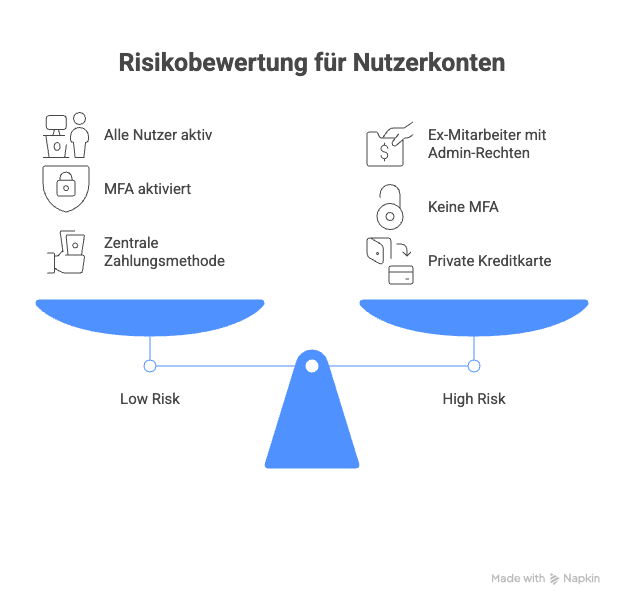
🟢 Low risk:
- All users active
- MFA activated
- Central payment method
🟡 Medium Risk:
- Double tools (Canva + Figma)
- Too many licenses (20 purchased, 12 used)
🔴 High Risk:
- Ex-employee with admin rights
- No MFA
- Private credit card as a payment method
Calculate savings potential
Formula:
Monatliche Verschwendung =
  (Ungenutzte Lizenzen × Preis) +
  (Doppel-Abos) +
  (Tools ohne Owner × Durchschnittspreis)
Example:
- Slack: 20 licenses at €8 each, only 14 active → €48/month
- Zoom: 2 accounts at €15 each → €15/month
- Dropbox Business (unused project) → 20€/month
= 83€/month = 996€/year savings
This calculation shows that it’s not about doing without tools. It’s about only paying for what is actually used.
On-/Offboarding as a core process
All previous measures will come to nothing if the offboarding process does not work. The hard truth: without proper offboarding, SaaS management is useless.
Onboarding checklist (new employees)
- [ ] Create Google Workspace / Microsoft 365 account
- [ ] Grant access to required tools (from SaaS inventory)
- [ ] Force MFA activation
- [ ] Set up password manager access
- [ ] In the SaaS sheet: Update number of users
Time: 15 minutes
Tip: Create a role-based access list, e.g. “What does each new sales employee get?”. This will save valuable minutes during the next onboarding.
Offboarding checklist (departing employees)
- [ ] Deactivate Google/Microsoft account (→ SSO accesses are automatically removed)
- [ ] Manually remove from tools that do not have SSO
- [ ] Check admin rights: Was person admin? → Appoint new person
- [ ] Release or cancel license
- [ ] In the SaaS sheet: Update number of users
Time: 20 minutes
Critical: Offboarding on the last day of work, not “sometime afterwards”.
Pro tip: Link offboarding with the HR process. Checklist in BambooHR, Personio or simple Google Form: “Employee leaves company → automatic reminder to IT.”
Incidentally, structured offboarding is not just an IT issue, but also a legal one: Under data protection law, companies are obliged to prevent access to personal data after an employee has left the company.
Conclusion: Fewer tools, more control, lower costs
SaaS chaos is not destiny. It is a solvable organizational problem – and the solution does not cost a lot of time or money.
SaaS chaos is not destiny. With a simple 5-step process (Inventory → Owner → Access → Renewal → Review), you can bring order to your tool landscape – without a bureaucratic monster.
The investment:
- One-off: 2-4 hours setup
- Ongoing: 30 minutes per quarter
The return:
- 400-1,200€/month cost savings
- No more admin rights black box
- Clean onboarding/offboarding
- Compliance & Security (MFA, SSO)
The first step is always the hardest – but in this case it literally takes two hours. After that, the system almost runs itself.
🎁 Free download
SaaS inventory list with renewal tracking
Get our tried and tested template:
✅ Inventory list with all relevant columns
✅ Automatic renewal reminders
✅ Cost dashboard by category
✅ Integrated offboarding checklist
Don’t have a budget for full-time IT?
We take care of SaaS management, license audits and on/offboarding processes for SMEs – so you can concentrate on your business.
👉 Find out more: itsupport.online
About itsupport.online: We specialize in IT support for small and medium-sized companies in Germany. SaaS management, cloud backup, Microsoft 365 administration – all from a single source, without a full-time IT position.